Files, editing and git
inside the TUI.
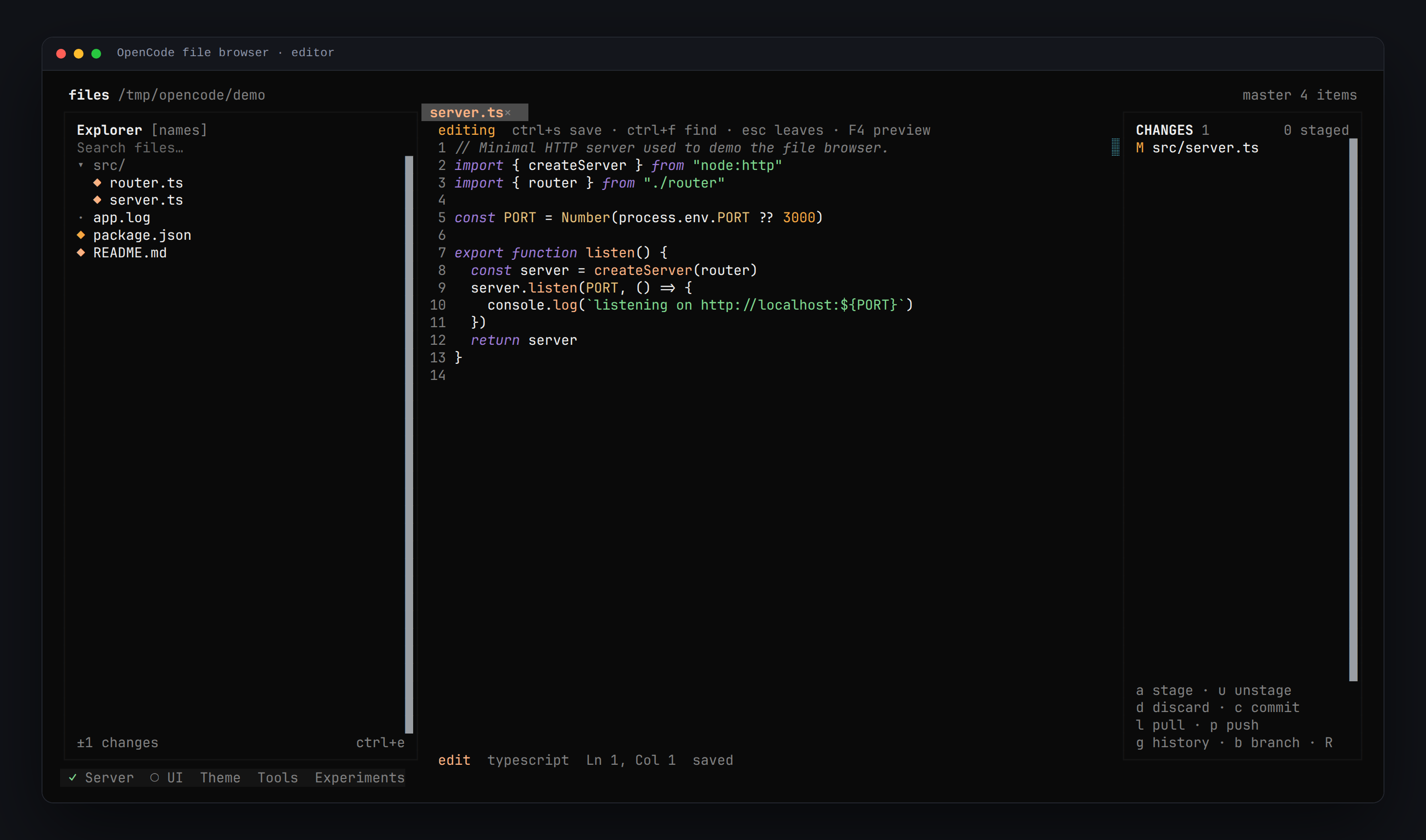
A file explorer, editor and review panel for OpenCode. Tabs, line numbers, syntax colours, diffs and commits without leaving the session — and a simple mode that keeps the original list + preview browser.
opencode plugin add opencode-file-browser@latest
Features
◆ Explorer
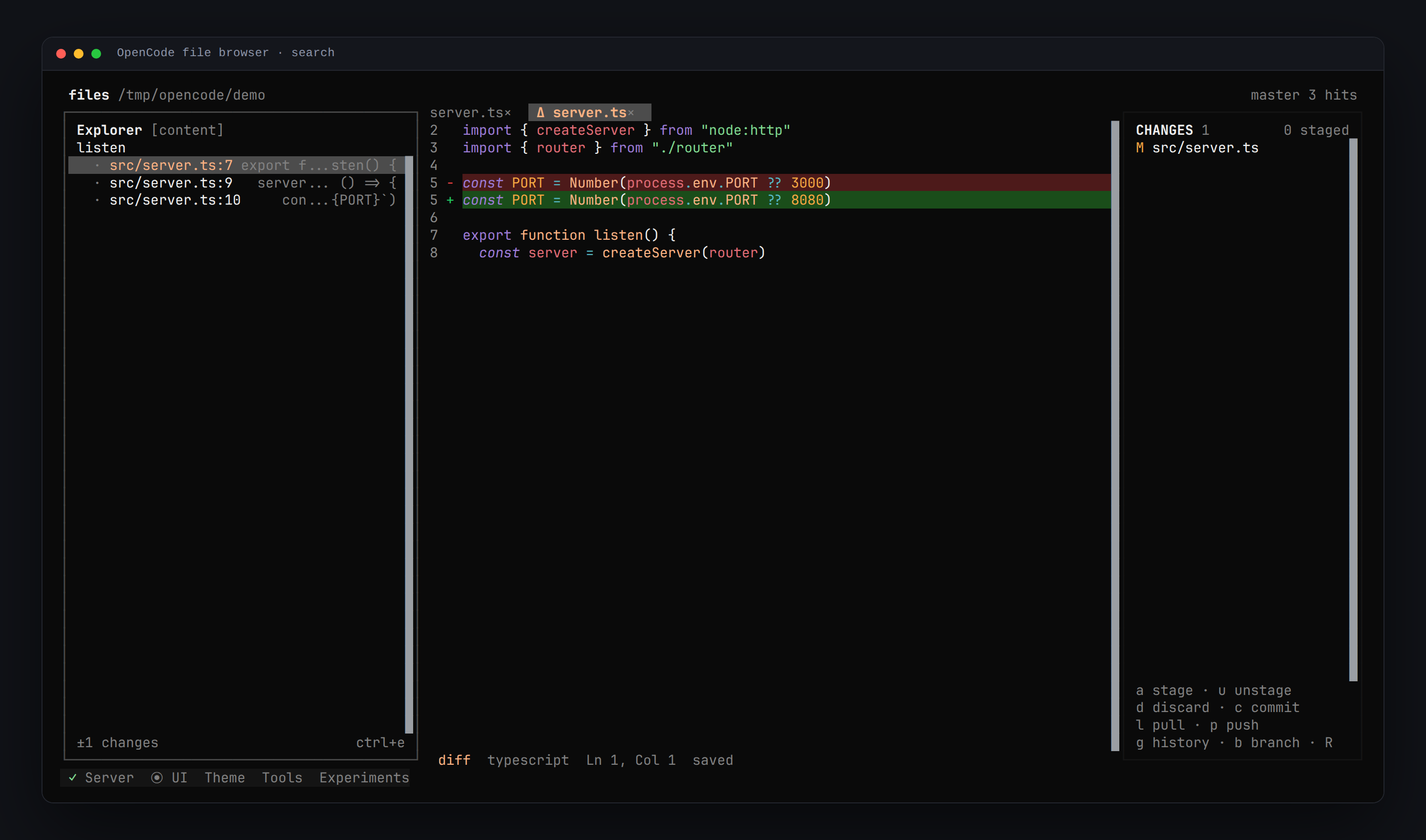
Expand folders in place or navigate into them. Search by name or content, toggle dotfiles, see the branch and the number of changes. Right click an open tab to reveal that file in the tree.
◆ Editor
Real editing in the host textarea: tabs, line numbers, syntax colours, Enter for a new line, Ctrl+F in the file, Ctrl+S to save, scrollbar and click-to-place cursor.
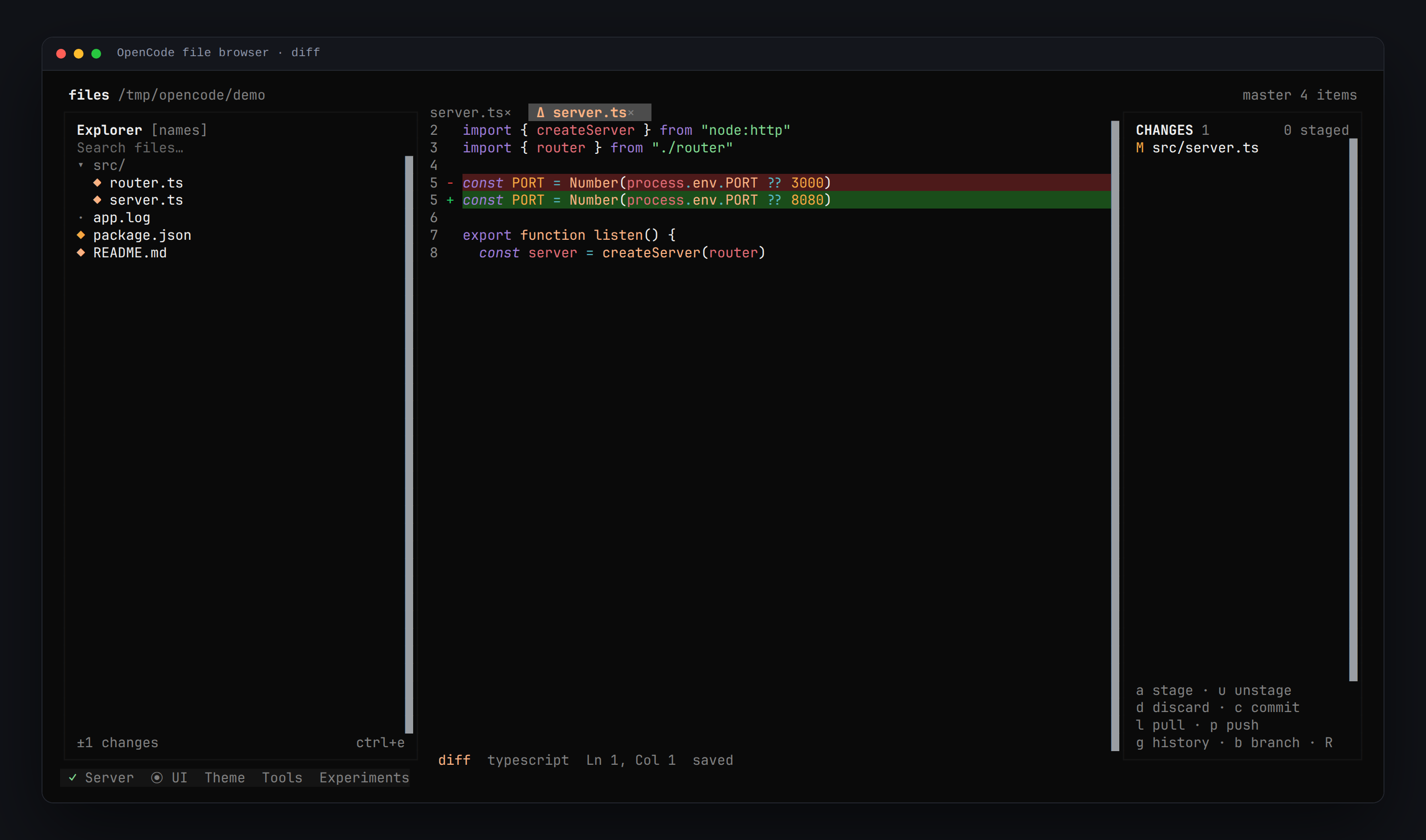
◆ Changes
Stage, unstage, discard, commit, pull, push, branches and history. Enter opens a unified diff; F4 jumps to the real file.
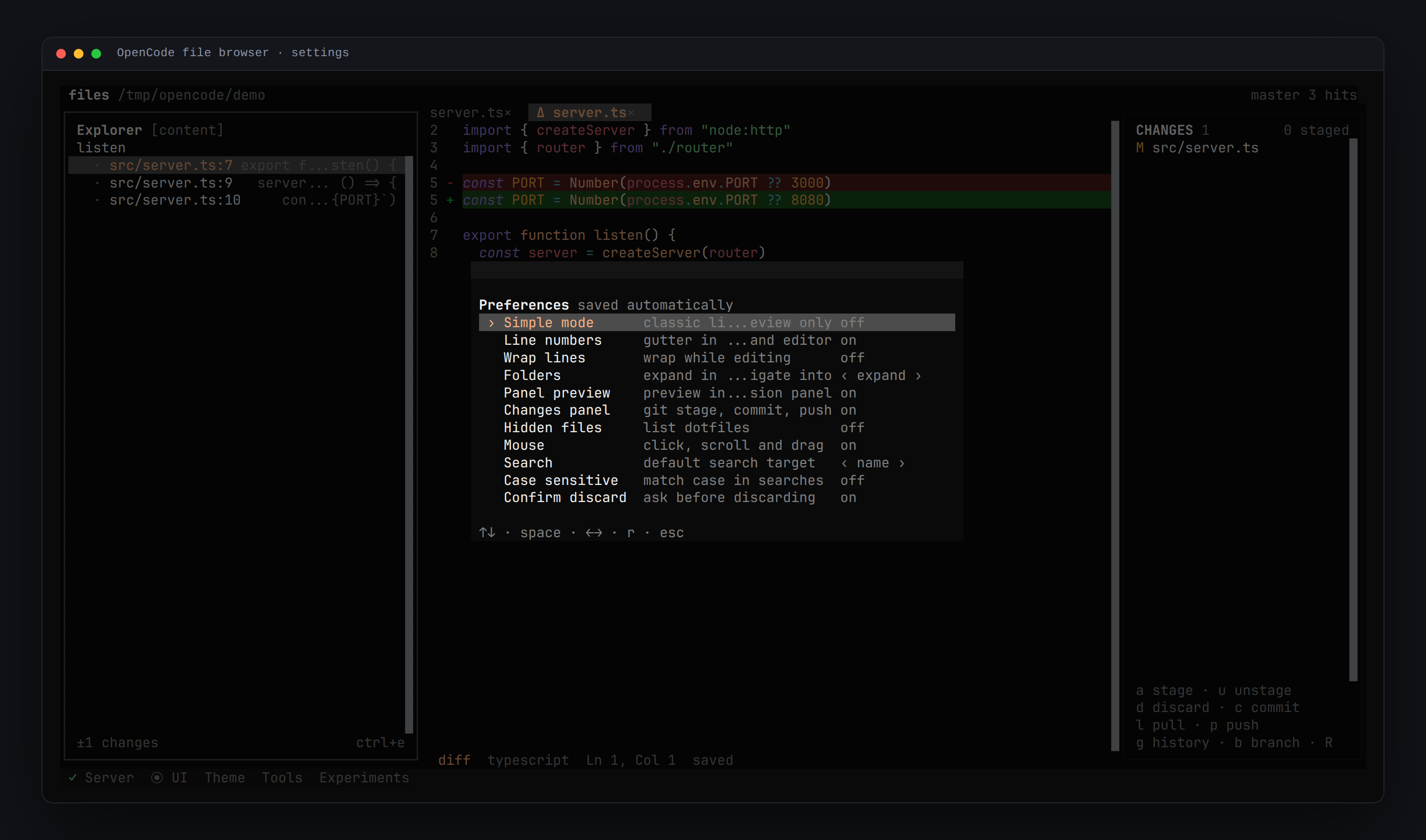
◆ Preferences
F2 opens a modal with simple mode, line numbers, wrap, folder behaviour, panel preview, hidden files, mouse, search target and case sensitivity.
◆ Big files
The first 2 000 lines are rendered. Huge logs show a metadata placeholder instead of freezing the terminal.
◆ Keyboard and mouse
Everything reachable from the keyboard, everything available in the command palette. Click, wheel, drag the divider, right click for actions.
Screenshots
Keys
| Key | Action |
|---|---|
| Ctrl+X F | open or close the browser |
| Ctrl+X O | open a file by path |
| ↑ ↓ j k | move in the list |
| → / Enter | open a file or expand a folder |
| Tab / Shift+Tab | cycle panes / back to the explorer |
| Ctrl+F / Ctrl+E | search / switch name ↔ content |
| e / F4 | preview ↔ editor |
| Ctrl+S / Ctrl+W | save / close tab |
| F1 / F2 / F3 | shortcuts / preferences / changes |
| F10 | item actions · tab menu with the editor focused |
| Esc | leave editor → clear search → close |